Quickstart
Your first cover
Run the tool with no arguments:
The terminal UI opens.
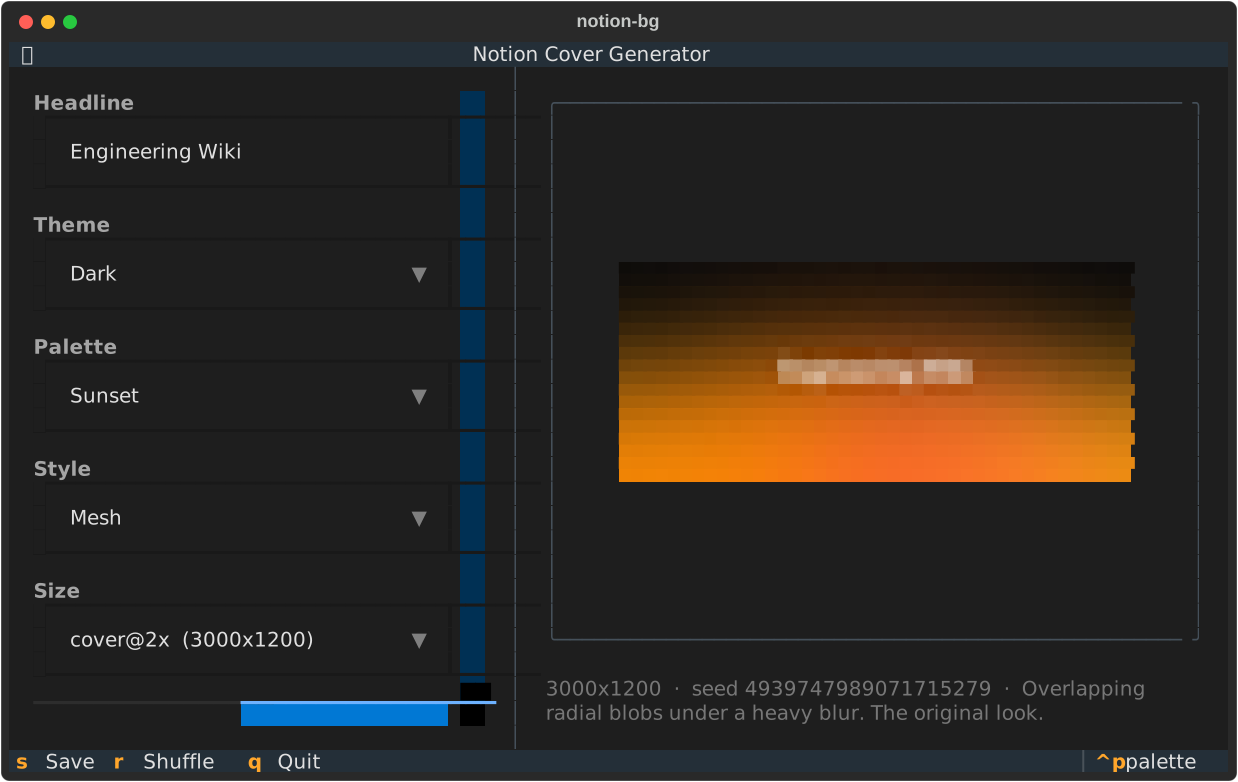
- Type a headline in the Headline field. Leave it empty for a cover with no text.
- Use Tab to move between fields, and the arrow keys to change a dropdown.
- Press R to shuffle until you like the layout.
- Press S to save.
The cover is written to a covers/ folder in whatever directory you started
from. The status line tells you the exact path.
Putting it on a Notion page
- Open the Notion page.
- Hover over the title and click Add cover.
- Hover the cover, click Change cover, then Upload.
- Choose the file from
covers/.
The same thing from the command line
Written to covers/engineering-wiki.jpg.
A few useful variations
Try a different palette and style:
See what is available:
Generate five versions and keep the one you like:
Make a cover for every page in a list:
cat > titles.txt <<'LIST'
Engineering Wiki
Design System
Meeting Notes
LIST

notion-bg generate --from-file titles.txt
Get the same image back every time:
Where things go
Covers land in covers/ unless you pass --out. Existing files are never
replaced: a second engineering-wiki.jpg becomes engineering-wiki-2.jpg. Pass
--overwrite if you actually want to replace one.
Next
- CLI reference for every flag
- Configuration to add your own colours